

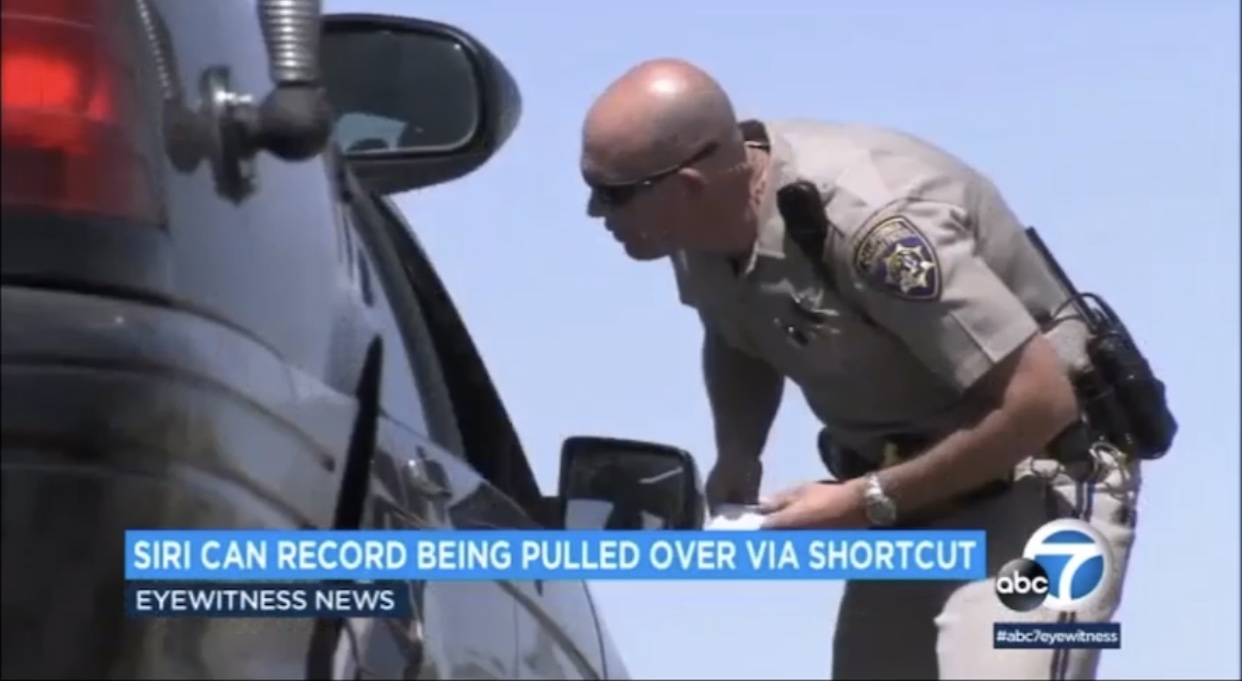
iPhone Shortcut Will Record Your Interaction With The Police: “Hey Siri, I’m Getting Pulled Over”
Some people may already know about this feature but the shortcut that allows users to automatically record their interactions with the police is gaining popularity amid nationwide protests and anger over police brutality.
To use this feature, iPhone users would have to say, “Hey Siri, I’m getting pulled over.” From there, the shortcut — which a user must first install themselves — will pause any music that you’re playing, turn down the brightness of your phone, turn on the “Do Not Disturb” mode to block any incoming calls, open up your front-facing camera and start a video recording, ABC News notes.
It will also send a message to a predesignated contact, alerting them that you have been pulled over and share your current location. Now, once you stop the recording, it sends a copy of the video to a predesignated contact. It will also give you the option to send it to your iCloud or Dropbox. As CNN reports, Redditor Robert Petersen created the feature back in 2018.
However, it was recently updated to fix any bugs and is now called the “I’m being pulled over” shortcut.
“I just wanted a way for anyone to have proof of their version of events in the unlikely scenario that something unexpected happens during a police interaction,” Petersen told CNN affiliate KCTV last year. “And if 1 in 10,000 people find my shortcut useful at all I’d be glad.”
ABC has provided instructions on how to use the shortcut:
Step 1: To set it up, first download the “Shortcuts” app on your iPhone.
Step 2: Then you have to run another shortcut in the Shortcuts app. If you tap “Gallery” on the bottom right corner, you will see other shortcuts you can run.
Step 3: Next, go to settings, and scroll down to “Shortcuts.” Tap it and then toggle the “Allow Untrusted Shortcuts” to on.
Step 4: Open this link in Safari to download the “I’m getting pulled over” shortcut. Tap “Get Shortcut.”
Step 5: Once it opens, scroll down and tap “Add Untrusted Shortcut.”
Step 6: Choose a contact(s) for who you would like to send your location and a copy of the video recording to. Then tap done.
RELATED: Facebook Announces “Quiet Mode” Feature To Help Users Cope With Quarantine